


LifeSmart Modular Touch Light Panels Wall Light RGB 40PCS

25 promo codes
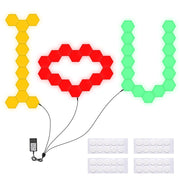
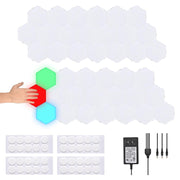
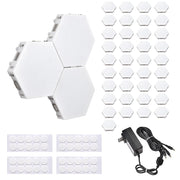
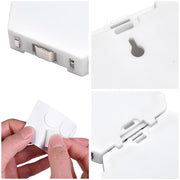
Buying this Set of 40 Touch Sensitive LED Smart Light Kit Wall mount Lamp, you can follow your ideas, DIY whatever pattern/ color you want, turn your wall into a work of art. It will shows gorgeous & amazing effects and creates romantic & joyful atmosphere.High Quality: Touch to Activate: Magnetic Wall-mount Hexagonal Light, built-in sensor offers easy operation, turn on/off by a simple tap; Tap to change between 3 lighting modes: Gradient Color Effect, Pure Color Effect(Red, Green, Blue) and Dynamic Effect; Change color varies with your mood to light up your life, feels like living in futureDIY Shape with Modular Panels: 40 LED blocks splice together, no connector needed for connecting 2 lightsMagnetic Panel Connection: Linking light panels by magnetic slot to make fast and easy connectionEasy to Install: With adhesive tape, no drilling neededLong Lifespan & Safety Guarantee: Lifespan of LEDs is up to 50,000 hours; FCC certificated light & UL adaptorProduct Details: Overall Dimesion(LxWxH): 4 15/16" x 4 5/16" x 13/16" (12.5 x 11 x 2 cm)Side Length: 2 9/16" (6.5 cm)Power Cord Length: 55 7/8" (142 cm)Input Voltage: 110 to 240V, 50 to 60HzOutput Voltage: DC 12V, 2APower (1 Panel): 1.5WLifespan of LEDs: About 50,000 hoursNet Weight: 11 Lbs (5 kg)Also In The Box: 40x Smart Light Panels40x Adhesive Tapes1x Adaptor1x ManualNotice: It is recommended to stick the light on wall with sleek surface (such as ceramic, glass or wooden wall) for tight installation.Please note that it may cause surface damage for painted wall if you took down the light.Cololight: How to distinguish whether I am using a 2.4GHz or 5GHz WiFi network.Cololight: How to distinguish whether I am using a 2.4GHz or 5GHz WiFi network.Mobile Phone: IOS System 1.Open the App store and download AirPort Utility2. Go to your iPhone's Settings and scroll down to 'AirPort Utility'3. Turn on the 'Wi-Fi Scanner' button4. Open the app and click on 'Wi-Fi Scan' in the upper right corner5. Click 'Scan' in the upper right cornerChannel 1 ' 13 band means you are on 2.4GHzChannel 13+ band means you are on 5GHz Mobile Phone: Android System Due to the differences between Android phones, there're two methods to check the frequency of your Wi-Fi network.1. Click on the connected Wi-Fi name in the Wi-Fi list and the corresponding information will be displayed, including the frequency. 2. Download a "Wi-Fi analyzer" app from the Play Store. PC Users 1.Click the Windows button in the bottom left corner of your screen2.Type in 'Wi-Fi'3. Click on 'Wi-Fi Settings'4.Make sure you are on the correct Wi-Fi network and then click 'Hardware Properties'. Then you will see the information related to your network band. Still cannot connect the APP Please make sure your phone is only connected to your 2.4 GHz network as the cololight does not work on 5.0 GHz network.1. If you only have one network name available, you can try to contact your internet service provider to have your network broken down into two network IDs. (2.4 GHz & 5.0 GHz)2. If you confirm that your phone is connecting the 2.4 GHz network but it still fails to connect with the APP. Please contact our customer service for help.Cololight: What if I can't connect it to Wi-Fi?Cololight: What if I can't connect it to Wi-Fi?Please make sure:1. the correct Wi-Fi password is entered2. it is connected to 2.4GHz Wi-Fi network instead of 5GHz3. the Wi-Fi signal is stable where the Cololight is4. Wi-Fi SSID isn't set to 'Hidden'5. Wi-Fi SSID is in English instead of Chinese6. the router isn't operating certain protection functions or connection limit such as: AP Isolation, Black/White List, MAC Address Filtering, Guest mode to prevent the device from new connection, or the router isn't on the maximum limit of connected devices.7. if multilevel router is applied, please switch to main routerAnd try to connect again.Cololight: What's the different between Cloud device, Local device, Nearby device?Cololight: What's the different between Cloud device, Local device, Nearby device?1.Cloud devices refer to devices added to the app after logging in to the Cololight account. You can also view and control cloud devices when you log in to the same account on other mobile phones as well.2.Local devices refer to devices added through guest login, which cannot be viewed when you use them on other mobile phones.3.Nearby devices refer to devices that have not been paired and added by you, but are on the same Wi-Fi network as your mobile phone.Cololight: What's the different between Login mode and Guest mode?Cololight: What's the different between Login mode and Guest mode?Login mode: When you add the Cololight under login mode, the device will be a cloud device, which can be accessed with your account even on another phone, you can also control cloud devices with LifeSmart App; Guest mode: the Cololight that is added under guest mode is a local device and cannot be accessed when you're on another phone.Cololight: Can I group and control multiple Cololight devices together?Cololight: Can I group and control multiple Cololight devices together?Cololight products support grouping. You can find the grouping function in the bottom menu of the sidebar. You can choose to group Cloud or Local devices.Follow the prompts to select the corresponding device to complete the device grouping.After grouping, you can synchronize all products in the group. When the group contains STRIP, there will be a pop-up window for secondary confirmation. Part of the lighting effects of the light strip will be restricted when grouping.Cololight: What if Cololight always fail to pair to the appCololight: What if Cololight always fail to pair to the appPlease check the problem with the following aspects:1. Make sure to select the correct device model;2. Make sure the WiFi frequency used is 2.4GHz;3. Ensure the WiFi signal is stable where the device is placed;4. Make sure to input the correct WiFi password;5. Try to reconnect WiFi on the mobile phone, try to restart the router and app;6. Make sure WiFi SSID is not set hidden;7. Set the WiFi SSID to be English;8. If multiple-layer router is applied, try to switch to the master router;9. Try to pair the device to another phone's 4G hotspot, in order to rule out network issues;10. Please place your Cololight in open space with less obstacles, also keep the device away from interference source such as mocrowave oven etc., do not surround the device with metals;11. Check whether other protection fucntions or connection limits are enabled on the router, such as AP isolation, B/W list, MAC filtering, guest mode etc., or the number of deivces connecting to the router reaches the limit. If all the above arechecked and still cannot get the problem resolved, you can try to delete the device and pair again.Cololight: What should I do if my Cololight gets offline on the app frequently?Cololight: What should I do if my Cololight gets offline on the app frequently?1. Please check whether power supply is correctly plugged;2. Please try to restart your router and app;3. Please place your Cololight near to the WiFi router;4. Please place your Cololight in open space with less obstacles, also keep the device away from interference source such as mocrowave oven etc.;5. Do not surround the device with metals. If all the above are checked and still cannot get the problem resolved, you can try to delete the device and pair again.Cololight: How to connect my Cololight to Apple HomeKit?Cololight: How to connect my Cololight to Apple HomeKit?Steps of connection1. Open Cololight app on iOS phones;2. Pair the device according to Cololight app guides;3. After the device is successfully added, you will find the device has been synchronized to "Home" app;4. Now you can use Siri voice command to control device ON/OFF, adjust colour and brightness;5. If you added a HomePod in your "Home" account, you can use HomePod to control Cololight devices.What if my Cololight disconnected with Apple HomeKit?Please reset the controller, then open "Home" app, add Cololight to "Home" again accoring to the app guides.Cololight: How to use the music mode of Cololight products?Cololight: How to use the music mode of Cololight products?You can click the botton of controller unit to use the music mode. Also you can pair device with Cololight app, click the icon on the bottom right to use the music mode, and you can get more settings.Device support two modes of music syncing : mobile MIC and device MIC.When using the mobile microphone, you must keep the Cololight app running in the front desk of the mobile phone system; When using the device microphone, you don't need to keep the app open all the time.Cololight: Why do some of the Cololights do not light up?Cololight: Why do some of the Cololights do not light up?1.Please kindly check the the "Max Distance" set on the App and amend it according to the actual distance.2.Please try to use a fixator to strength the connection when you are connecting more than three lights.3.Please make sure you are using the connecter and fixator correct as the connecter is use to transfer power and as communication function while the fixator is for strengthing the connection only.4.If the above instruction cannot help, please connect the defective light with the control unit directly to confirm if it is faulty.Cololight: How to connect my Cololight to Stream Deck?Cololight: How to connect my Cololight to Stream Deck?1. Download and install the latest Stream Deck software. If you are not sure where to download the software from, here's the link for your reference.https://www.elgato.com/en/downloads2. Double click the software icon to run it, and then click 'More Actions'on the bottom right corner.3. In the skill library search Cololight, click install.4. After installing, cololight functions will appear on the right hand side of the software.5. Drag and place a cololight function to one of the blocks, for example on/off.6. Click 'Login', input Cololight app account details in the next popup window and click authorize. 7. After log in, select a light which is already added to the account, now you can click the button on the Stream Deck device to control on/off status of the light:. 8. Drag more function to the empty blocks and enjoy with Cololight control. Cololight MIX: Why do the effects of multiple light blocks appear simultaneously when I customize the light effect? What is a Level?Cololight MIX: Why do the effects of multiple light blocks appear simultaneously when I customize the light effect? What is a Level?When multiple light blocks are in the same level, the filling and erasing of the colors of light blockswill be synchronized.When the product is spliced, the number of light blocks connected to the controller is 1, and the number of lights connected to the first level is 2, and so on, the color effect of light blocks will be synchronized at the same level.The maximum distance is the maximum value of the Levels.Cololight: What mode does the different color of the light bolck mean and how to reset the Cololight?Cololight: What mode does the different color of the light bolck mean and how to reset the Cololight?Meaning of different color of light blockThe light block flashes blue: pairing in bluetooth modeThe light block flashes green: pairing in Airkiss modeThe light block flashes red: pairing time outHow to reset the CololightPlease use the needle in the package to hold the reset button (the left hole on the front of the controller) for 10s, then the indicator of the controller will flash green, release the needle and reset is successful.Cololight: What if "connect device" shows faliure?Cololight: What if "connect device" shows faliure?Please check mobile phone "System setting" - "Authority setting", enable localization authority for Clololight app.Please exit pairing process, on homepage check whether there is a device shows as "Nearby", if yes then it means the device is connected to WiFi successfully, please wait on this page for a few minutes, the deivce will then connect to cloud server automatically and display as "Cloud".If the device do not show as "Cloud" after a period of time, please try pair again or change pairing mode.Cololight: How to install the item? Can you send me an instruction or video to show it?Cololight: How to install the item? Can you send me an instruction or video to show it?Here are the instruction of installation.1. Ensure that the lock catch shape of controller unit and the hole behind cololight are perfectly matched, insert controller unit into cololight, rotate the turnplate on controller unit clockwise to locked position.2. Use the connector to contect the cololights together. One end of the connector must connect to the outer slot while other end must connect to the inner slot.(Please be advise that NEVER use the connector to connect the outer slots of the cololight because the attached cololight could not power this way. And the fixator (fixer) is for strengthening the connection. It could not be used to transfer power as communication function.)3. Then place the cololight on the base and power on.For best performance, the maximum number of the cololightto be used with a controller unit should be 11.For your reference, here is the user manual and a video to show the process of installation.https://5035664.app.netsuite.com/core/media/media.nl?id=12849093&c=5035664&h=ff2384adacd498038bd6&_xt=.binhttps://5035664.app.netsuite.com/core/media/media.nl?id=12849092&c=5035664&h=c50b1f2140765cd44eb9&_xt=.pdfWhat kind of Smart Light / Cololight do we have?What kind of Smart Light / Cololight do we have?We have different smart light/cololight for option. It's suitable for decoration at different festival and partie, and help creates fashion and romantic atmosphere in dining ,living and so many other scenes. Here's the table to show the smart light/cololight that we have. If you are not sure which one that you should choose, please feel free to contact our support center. SeriesYES SKUSKULightBasePower ConnectionFixatorConnectorWall-Mounting AccessoriesCommunication ProtocolApp ControlVoice ControlTouch SensitiveBasicYES208950LIT005-6B-0761None46NoneWIFIYAmazon Alexa & Google AssistantNProYES511350LIT002-3B-07.V131USB Cable03NoneWIFI+BluetoothYAmazon Alexa & Google AssistantNYES303850LIT003-11B-07111USB Cable811NoneWIFI+BluetoothYAmazon Alexa & Google HomeNYES511450LITSET001-5.V151USB Cable25NoneWIFI+BluetoothYAmazon Alexa & Google AssistantNYES511550LITSET002-6.V161USB Cable36NoneWIFI+BluetoothYAmazon Alexa & Google AssistantNYES511650LITSET003-7.V171USB Cable47NoneWIFI+BluetoothYAmazon Alexa & Google AssistantNYES511750LITSET004-9.V191USB Cable69NoneWIFI+BluetoothYAmazon Alexa & Google AssistantNYES511850LITSET005-10.V1101USB Cable710NoneWIFI+BluetoothYAmazon Alexa & Google AssistantNYES303950LIT004-10WM-07101USB Cable710Wall-Mounting BasesWIFI+BluetoothYAmazon Alexa & Google HomeNPlusYES359450LIT007-1P-0710None11NoneWIFIYAmazon Alexa, Apple Homekit & Google HomeNYES360150LIT007-7P-0771USB Cable57NoneWIFIYAmazon Alexa, Apple Homekit & Google HomeNSingle LightYES511250LIT001-1-07.V110None11NoneWIFIYAmazon Alexa & Google AssistantNTouch LightYES375550LIT006-10B-07100`Adaptor00Adhesive TapesNoneNNoneYYES375650LIT006-10W-07100Adaptor00Adhesive TapesNoneNNoneYYES386050LIT006-40B-07400Adaptor00Adhesive TapesNoneNNoneY
Save on LifeSmart Modular Touch Light Panels Wall Light RGB 40PCS with a yescomusa promo code
Checkmate is a savings app with over one million users that have saved $$$ on brands like yescomusa.
The Checkmate extension automatically applies yescomusa discount codes, yescomusa coupons and more to give you discounts on products like LifeSmart Modular Touch Light Panels Wall Light RGB 40PCS.
Top yescomusa discount codes
5 people have used this yescomusa coupon code
Last used over 1 year ago
Save up to 20% Off Orders
Last used over 2 years ago
50% Off Sitewide + Free Shipping
Last used almost 2 years ago
See all codes

Similar items


